If your WordPress site's emails land in spam, missing or broken SPF, DKIM and DMARC records are one of the most likely reasons. These three DNS records are how Gmail, Outlook and Yahoo decide whether an email really comes from your domain.
They sound technical, but the ideas are simple. This guide explains what each one does, what a correct setup looks like for a WordPress site, and the mistakes that quietly break them.
The short version
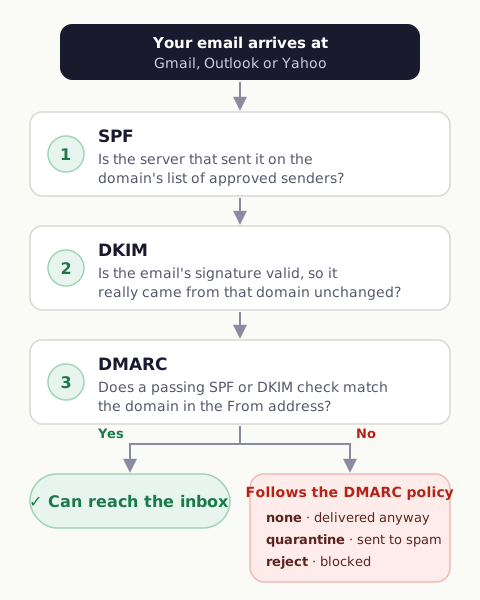
- SPF lists which servers are allowed to send email for your domain.
- DKIM adds a signature to each email that proves it came from your domain and wasn't changed.
- DMARC tells receiving servers what to do when SPF and DKIM don't line up with the "From" address, and sends you reports about it.
All three are TXT records in your domain's DNS, the same place you manage your domain at your registrar, Cloudflare or your web host.
Here's how a receiving server uses them on a single email:
SPF: who is allowed to send
An SPF record is a list of approved senders. When an email arrives claiming to be from your domain, the receiving server checks whether the server that sent it is on the list.
A typical SPF record looks like this:
v=spf1 include:_spf.google.com include:spf.brevo.com ~all
This says: Google Workspace and Brevo may send for this domain, and anything else should be treated with suspicion (~all).
SPF rules that catch people out
- Only one SPF record per domain. If you add a second record starting with
v=spf1, both become invalid. Always edit the existing record and add anotherinclude:to it. - Include every service that sends for you. Your mailbox provider (Google Workspace, Microsoft 365), your website's email service, your newsletter tool, your helpdesk. If one is missing, its emails fail SPF.
- Stay under 10 DNS lookups. Each
include:costs lookups, and some providers' includes contain more includes. Over 10, SPF fails entirely. WP Mail Tester counts your lookups for you. - SPF checks the hidden sender address, called the Return-Path or envelope sender, not the "From" address you see. That's why DMARC exists (see below).
DKIM: a signature on every email
DKIM works like a wax seal. Your email service signs each outgoing email with a private key, and publishes the matching public key in your DNS. The receiving server checks the signature against your DNS record: if it matches, the email genuinely came through your service and wasn't altered.
DKIM records are generated by your email service, so you don't write them yourself. They usually look like a TXT or CNAME record with a name such as:
brevo1._domainkey.yourdomain.com
The part before ._domainkey is called the selector. Each service uses its own, which is why one domain can have several DKIM records without any conflict.
DKIM tips
- Set up DKIM for every service that sends as your domain, not just one. Google Workspace and Microsoft 365 both have DKIM settings in their admin panels that are off by default.
- Copy records exactly. DKIM keys are long strings, and a single missing character breaks them. Some DNS panels split long values: follow your provider's instructions.
- If your site sends with PHP mail(), there's usually no DKIM at all. Sending through a proper email service is what adds it. See PHP mail vs SMTP.
DMARC: tying it all together
SPF and DKIM each prove something, but neither checks the "From" address your recipient actually sees. DMARC closes that gap. It requires that SPF or DKIM passes and matches the domain in the From address. This matching is called alignment.
DMARC also tells receiving servers what to do when an email fails, and where to send reports.
A starting DMARC record looks like this:
Name:  _dmarc
Type:  TXT
Value: v=DMARC1; p=none; rua=mailto:dmarc@yourdomain.com
The p= part is the policy:
| Policy | What it means |
|---|---|
p=none |
Deliver failing emails as normal; just send me reports. |
p=quarantine |
Send failing emails to spam. |
p=reject |
Reject failing emails entirely. |
Roll DMARC out in stages
Start with p=none. Watch the reports for a few weeks to confirm everything that legitimately sends for your domain passes. Then move to p=quarantine, and eventually p=reject if you want the strongest protection against people faking your domain.
Jumping straight to p=reject before SPF and DKIM are right for every service is a common way to block your own emails.
What a good setup looks like for a WordPress site
For a typical site that uses Google Workspace for mailboxes and Brevo for website emails:
- SPF: one record including both services.
v=spf1 include:_spf.google.com include:spf.brevo.com ~all - DKIM: one record from Google Workspace, and the record(s) Brevo gives you.
- DMARC:
v=DMARC1; p=none; rua=mailto:dmarc@yourdomain.comto start. - WordPress: an SMTP plugin sending through Brevo, with the From address set to an address on your domain.
Swap in your own providers. The structure stays the same.
How to check your setup
DNS lookup tools can show whether the records exist, but they can't tell you whether your website's actual emails pass. That depends on how your site sends.
The reliable way is to test a real email. Get a free address from WP Mail Tester, send an email to it from your WordPress site, and within a minute you'll see whether SPF, DKIM and DMARC pass for that exact email, plus your SPF lookup count, spam score and sending method.
Common questions
Do I need all three?
Yes. Gmail and Yahoo now expect domains that send a lot of email to have SPF, DKIM and DMARC, and even small senders get better inbox placement with all three in place.
Will adding these records break my existing email?
Not if you follow the rules above: edit your existing SPF record rather than adding a second one, add DKIM for every service, and start DMARC at p=none. The p=none policy doesn't block anything.
My DMARC record says p=none. Is that a problem?
It's the right place to start, and it's a common warning in deliverability reports. It means you're monitoring but not yet protecting your domain. Once you're confident everything passes, move to p=quarantine.
How long do DNS changes take?
Usually minutes, sometimes a few hours. Wait a little, then run a new test to confirm.